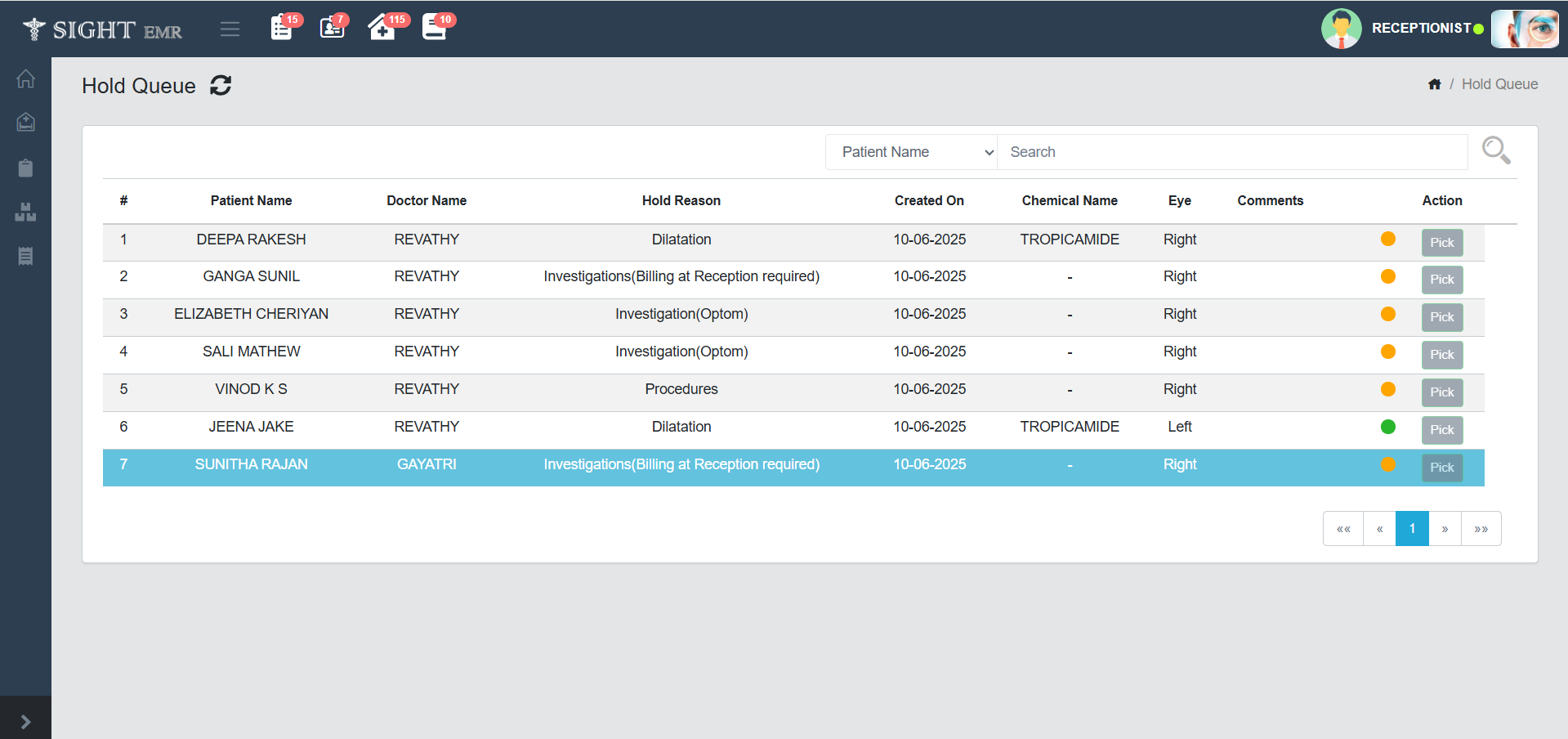
The Hold Queue screen is used to manage patients who are temporarily put on hold—for example, due to Dilatation/ Investigations (Billing at Reception required)/ Investigations (Optom)/ Procedures.
🖥️ Screen Overview
| Field | Description |
|---|---|
| Patient Name | Displays the full name of the patient. |
| Doctor Name | The consulting doctor assigned to the patient. |
| Hold Reason | The reason for holding the patient (Eg., Dilatation). |
| Created On | The date the patient was added to the hold queue. |
| Chemical Name | The medication/chemical applied (Eg., Tropicamide). |
| Eye | Indicates which eye the medication was administered to (Right, Left, or Both). |
| Comments | Comments added by the Dr. |
- Filters: Filter by Patient name , Dr Name and a manual search button with search icon is available.
Pick Button
-
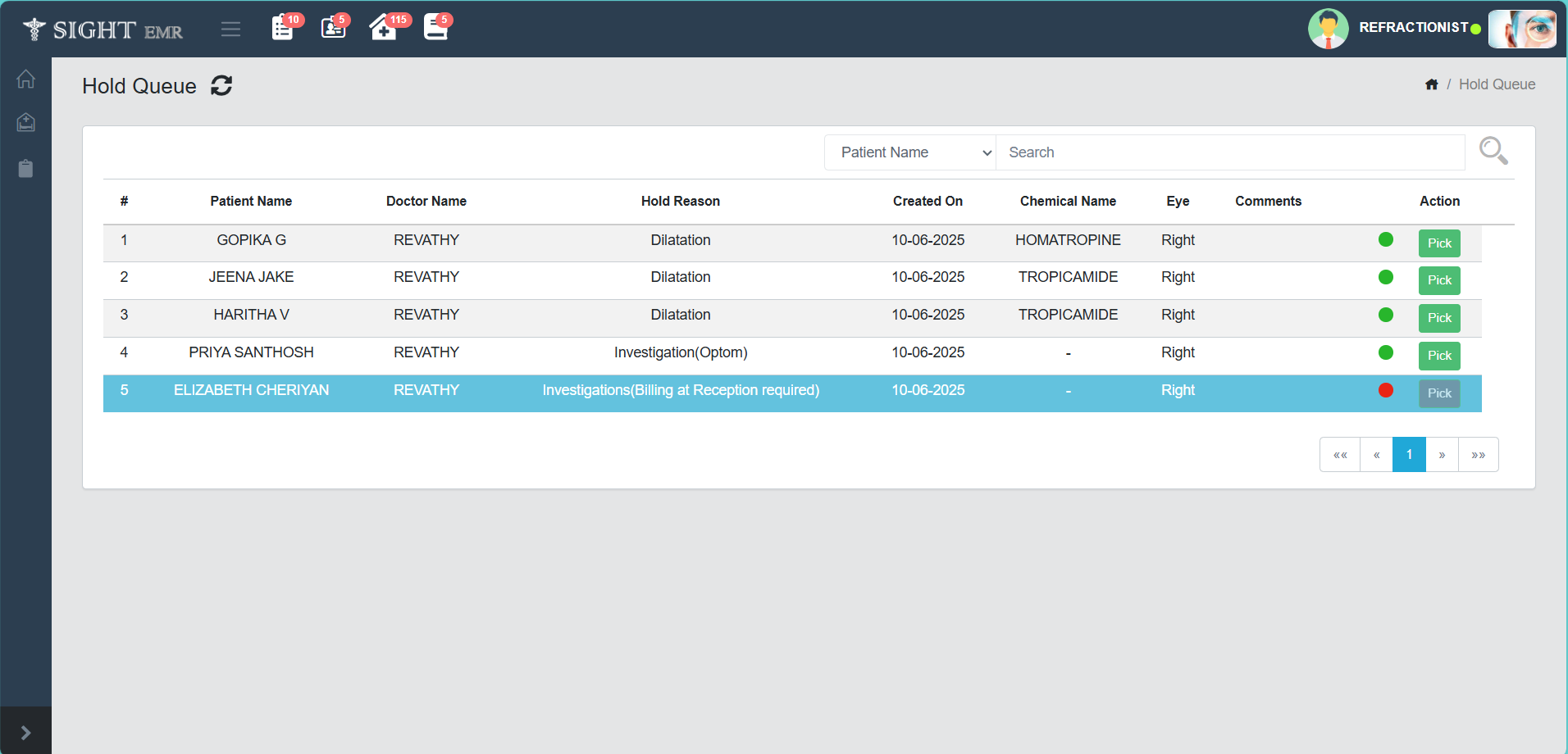
Click Pick button to pick the Patient by Refractionist/Dr. from the Hold Queue for the further consultation.
-
For the Hold Resons: Dilatation, Investigation (Optom) and Procedures, Pick button will be enabled for Refractionist and Dr.
-
For Investigations (Billing at Reception required), Pick button will be disabled for both Refractionist and Doctor. Only after generating the Investigation Bill by the Receptionist it will be enabled for Refractionist.
-
Investigations (Billing at Reception required) will be appeared in Blue colour for Receptionist (Waiting Queue & Hold Queue) and Refractionist (Hold Queue).
-
Only after submitting the data by Refractionist, the Pick button will be enabled for Dr.
-
Yellow Colour Nurse Icon will be appeared in Hold Queue after completed by Refractionist.
-
The SUPER ADMIN and CLINIC ADMIN (RECEPTIONIST ONLY) can be enabled the PICK button for both Refractionist and Dr. without generating Investigation Bill.