Schedule Patient
-
Schedule Management
- Go to Schedule Patient.
- Select Schedule Management.
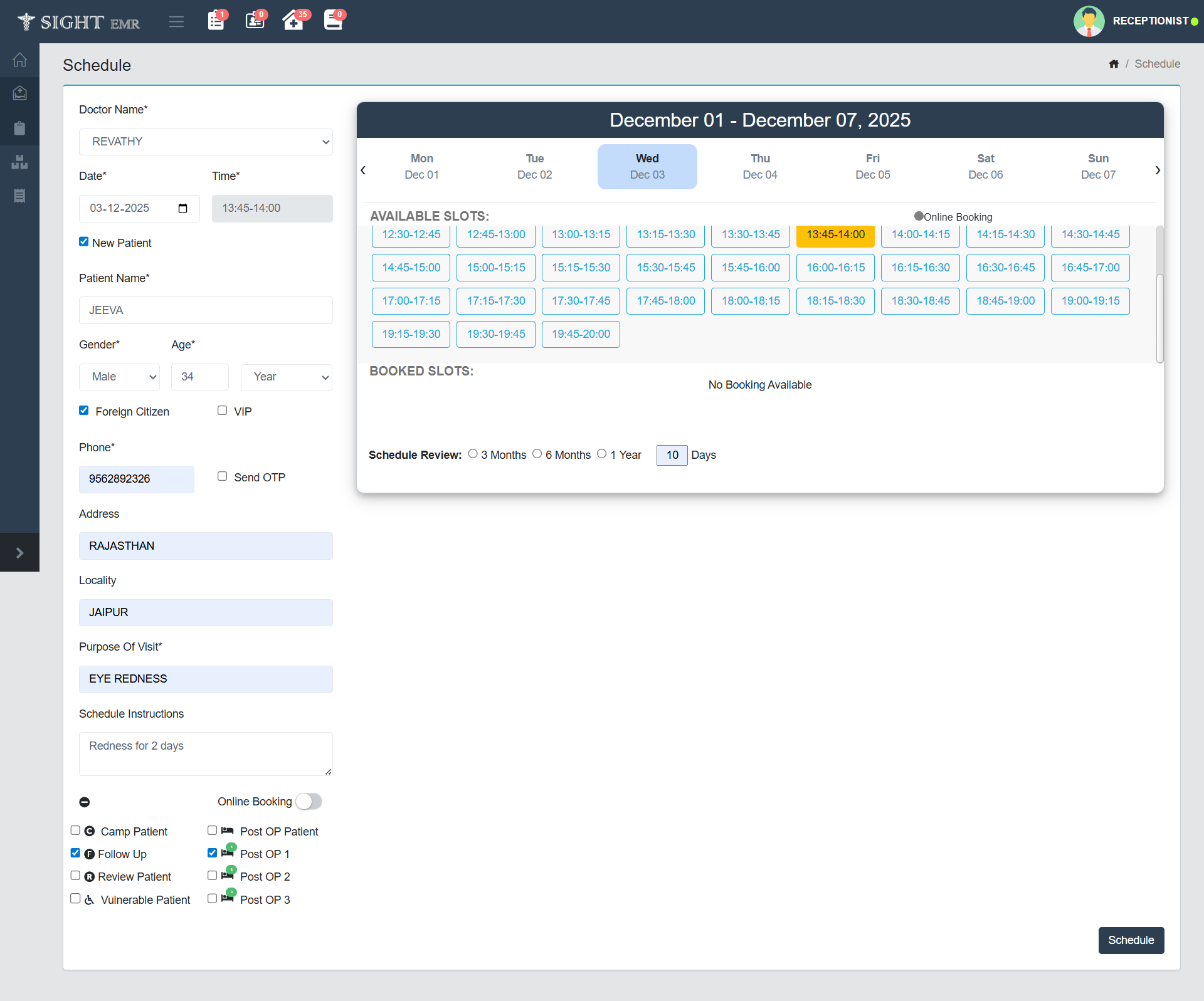
| Field | Description |
|---|---|
| Doctor Name* | Select the doctor from the dropdown list. |
| Date* | Choose the appointment date using the calendar picker. |
| Time* | Select or enter the time of appointment. |
| New Patient | Check this box if the patient is new. |
| Patient Name* | Search and select from registered patients. (Search by Patient name/Ph. No./UHID/Alt ID) |
| Purpose of Visit* | Enter the reason for consultation. |
| Schedule Instructions | Optional notes for the visit. |
| Online Booking | Toggle switch to allow online appointment booking. |
- For New Patients: Enter Patient Name/ Gender/ Age/ Purpose of Visit/ Address/ Mobile No. Verification.
- For Existing Patients: Search the patient by Patient Name/ UHID/ Phone Number/ Alt ID. Select the patient from the list that appears.
note
Last Visit Dr and Date will be displayed at the bottom left.
-
Slot Availability Panel (Right Side)
- Date Range: Select a date to view slots for that specific week.
- Available Slots: Displays all available time slots for each day. Click a slot to schedule an appointment.
- Booked Slots: Shows appointments already scheduled.
- Schedule Review: Mark for follow-up scheduling in 3 months, 6 months, or 1 year.
- The user can now select no of days to select an availability slot in addition to the current 3 months,6 months and 1 year options.
-
Check Boxes (Optional): Tick the check boxes for Camp Patient/ Follow Up/ review Patient/ Vulnerable Patient/ Post OP Patient/ Post OP 1/ Post OP 2/ Post OP 3.
-
Submit Appointment: Click the Schedule button at the bottom right to save the appointment.
-
The Scheduled patients will be displayed in Schedule List (Side Nav) date-wise.
-
Schedule List (Side Nav)
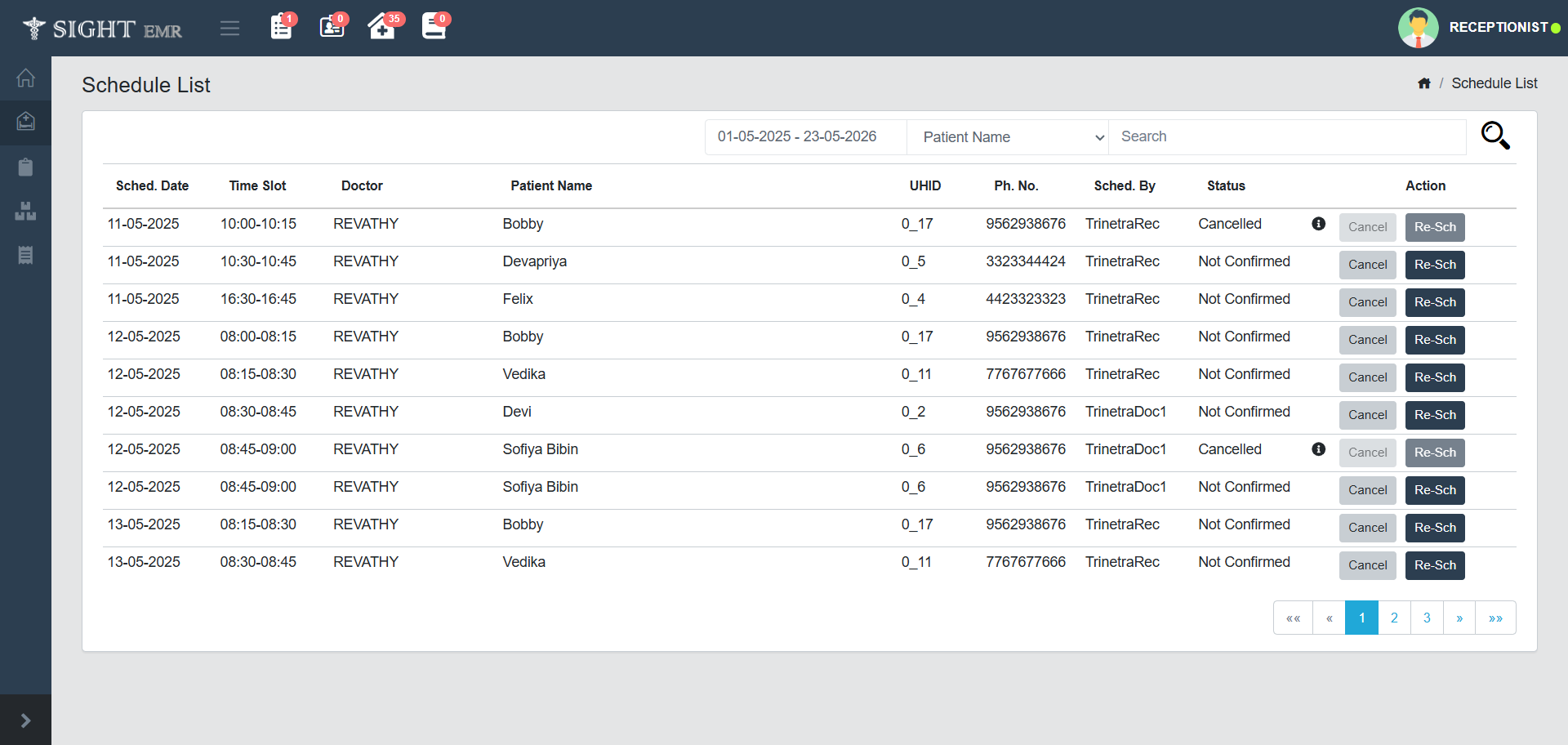
- The Schedule List module provides an interface to view, manage, and modify all scheduled appointments with Scheduled date, Time Slot, Doctor, Patient Name, UHID, Phone No., Scheduled By, Status (Confirmed/Not Confirmed/Cancelled appointments:with reason )
- Date Range Filter: Allows filtering of schedules within a specified date range.
- Search and Filter: Appointments can be filtered using Patient name/ Doctor Name/ UHID/ Phone Number/ Alt ID.
- Pagination: Displays all appointments in a paginated format with 10 records per page for easy navigation.
- Cancel button: Click Cancel a scheduled appointment. Fill the reason for the cancellation. The reason for cancellation will be displayed in an 'i' hover.
- Reschedule button: Opens the rescheduling interface to select a new time slot for the existing appointment.
note
The Appointment Scheduled for the current date will be displayed in Schedule List (Side Nav) and also in the Waiting Queue: Schedule List.