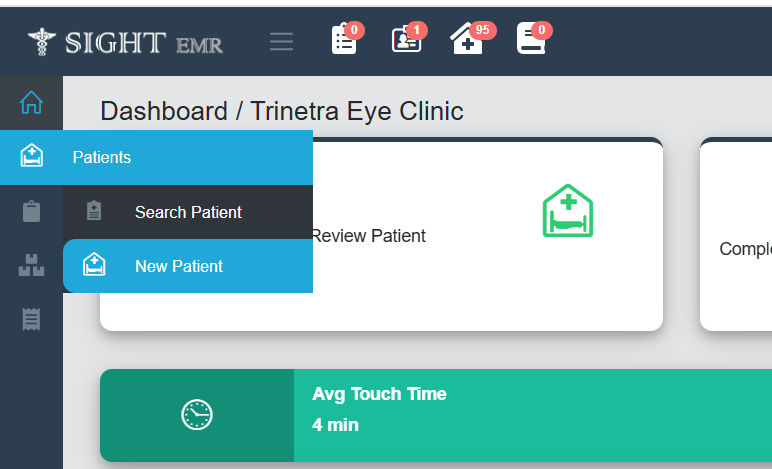
- Go to ‘Patient’ (Side Nav)
- Select ‘New Patient’
Step 1:
-
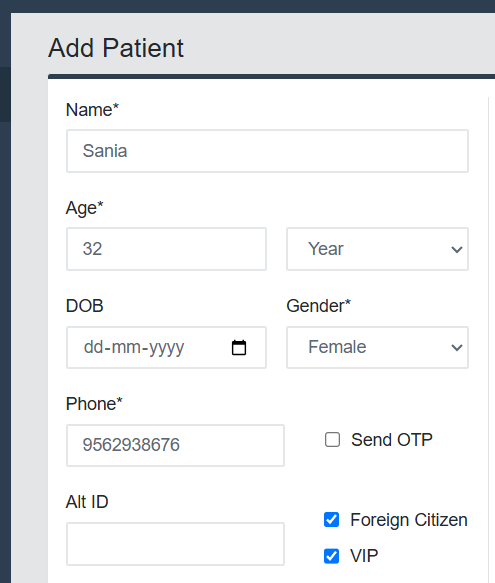
Enter Basic Patient Information
| Field Name | Details |
|---|---|
| Full Name | First Name |
| Gender | Male / Female |
| Date of Birth / Age | Either exact DOB or estimated age |
| Contact Number | Mobile or landline |
| Email Address | Optional |
Step 2:
-
Enter Demographic/Address Details
- Locality/Address/Pincode/Occupation/Education/ID
- Add Insurance details (Insurance No./Insurance Provider), if insured.
Step 3:
-
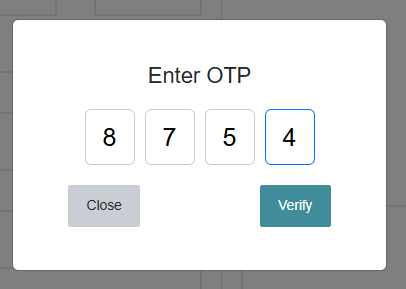
Mobile Number Verification
- Enter Mobile Number
- Tick the check box for ‘Send OTP’
- Enter the 4 digit OTP send to the registered Mobile No.
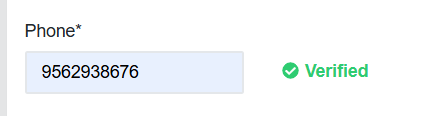
- If Valid - Green Checkmark Icon-Indicates that the Phone Number has been successfully authenticated.
- If Invalid - An Error message appears like ‘Invalid OTP'
Step 4
-
Check Boxes
- Foreign Checkbox - To indicate that the patient is a non- National/International individual
- VIP Checkbox-To flag patients who require special attention, privacy, or priority handling.
- Patient Type & Flags (Check Boxes)
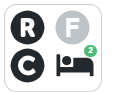
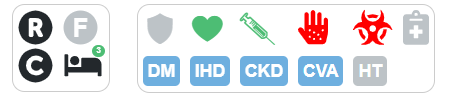
- Camp/Emergency/Follow up/Review Paid/Vulnerable/Post OP/Free OP.
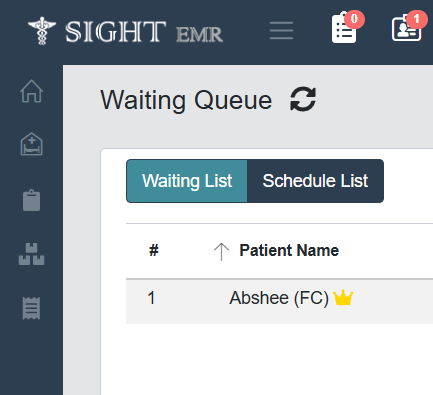
- It will reflect in the Dr screen
- Organ Donor: Whether the patient is an organ donor.
- Bio Hazard: Whether the patient is suffering from contagious diseases like TB, Hep B, HIV etc.
- Immunization: Whether the patient is fully immunized upto age.
- Insurance: Whether the patient has insurance policy. Enter Insurance Number and Insurance Provider Name in the provided fields.
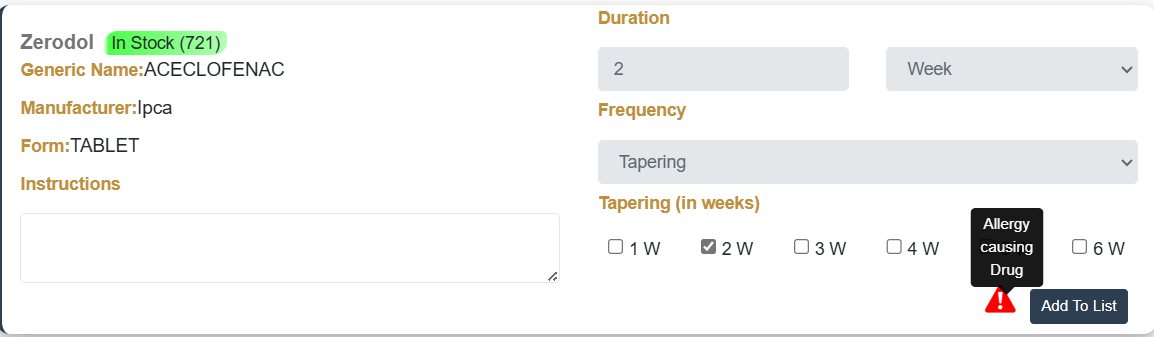
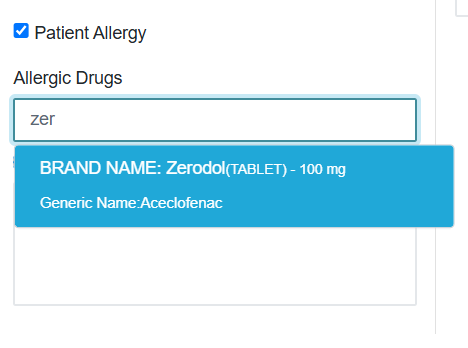
- Patient allergy Check Box- Can Search/type the allergic medicines. An alert message will appear when the Dr. prescribe medicine.
Step 5:
-
Patient Clinical Information
-
Referal Details: Name of the referred Dr.or clinic/Phone no./email (for follow up or co-ordination)
-
Emergency Contact Details: Full Name/email id/ Ph.No./Address of the person to be contacted in case of a medical emergency. And also add the relationship of the emergency contact to the patient (Eg: Father/spouse etc.)
-
Complaints:
- Description: The Patient’s main symptom/compliant (Eg: Redness, Watering etc.)
- Comments: Additional notes or context about the complaint
- Eye: Indicates if the complaint relates to one or both eyes (options: Left, Right, Both)
- Duration: How long the patient has experienced the
complaint
➕ Button-Adds a new Complaint row
🗑️ Button-Deletes the corresponding Complaint row
-
Previous Medical History:
- Medical Description (Drop Down): Select a relevant past medical issue or treatment from the predefined list (e.g., Diabetes, Eye Surgery, Stroke). This helps clinicians quickly identify high-risk conditions.
- Comment: Add any extra notes or specifics related to the selected condition (e.g., “On insulin for 5 years”, or “Surgery on left eye in 2022”).
- Duration: Enter the time since the condition started or was diagnosed (e.g., "3 years", "6 months"). Useful for understanding chronicity and progression.
➕ Button-Add a new Medical History
🗑️ Button-Deletes the corresponding entry
-
- Current Medication: Enter current medications.
- Attachments: Add attachemnets/Comments and upload or delete the files
- Family History: Select a relevant medical issue from the predefined list/add comment and duration.
➕ Button-Add a new Family History
🗑️ Button-Deletes the corresponding entry
Step 6:
-
Reception Notes:
- Receptionist can add any remarks about the Patient in the field provided.
Step 7:
-
Select Consulting Doctor:
- Select the name of the Doctor the patient wants to consult from the drop-down list.
Step 8:
-
Add to Queue
- Click Submit Button to submit all the patient details entered.
- Generate Bill if needed.
- Click Add to Queue to add the patient to the Waiting queue.