Add to Queue (New Patient)
- Proceed with Bill
- ‘Submit’ all Patient details.

- Click Bill button to Generate Bill.

- Click Select Consulting Dr and select the Name of Doctor patient wants to consult from the drop-down list.
- Click Add to Queue to add the patient to the Waiting Queue.
-
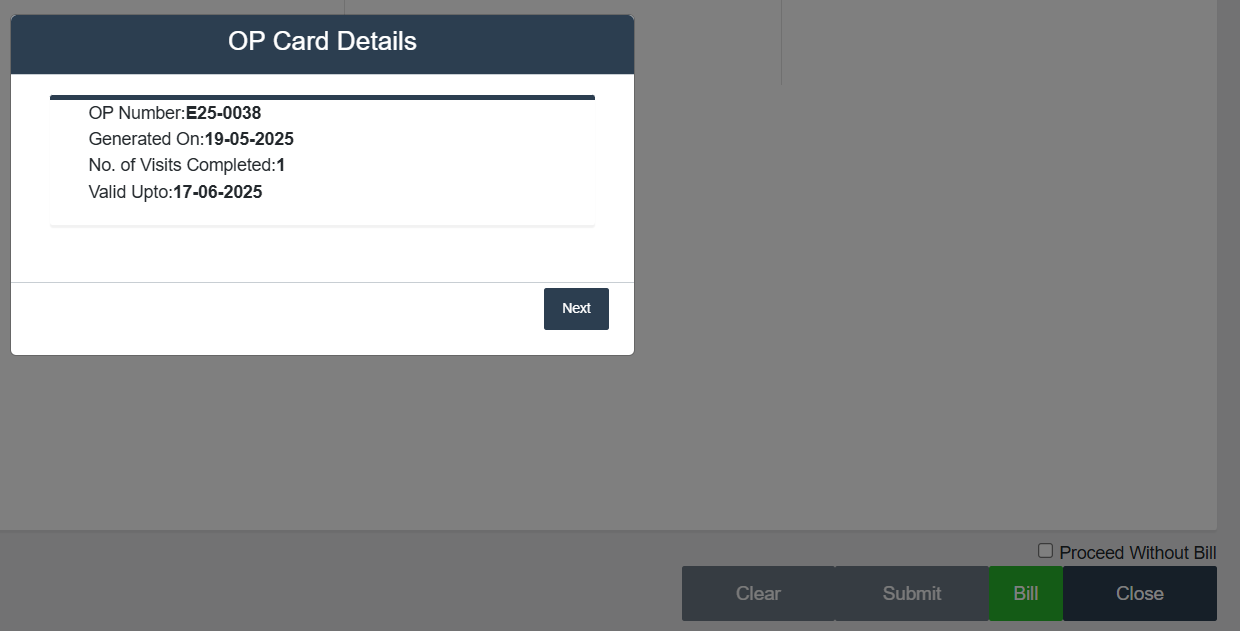
OP Card will be generated with OP Number, Generated Date, No. of Visits Completed and Valid Upto.
-
Proceed without Bill
- Enter Patient details.
- Tick the check box for ‘Proceed to Queue'

- Click Select Consulting Dr and select the Name of Doctor patient wants to consult from the drop-down list.
- Click Add to Queue to add the patient to the Waiting Queue.
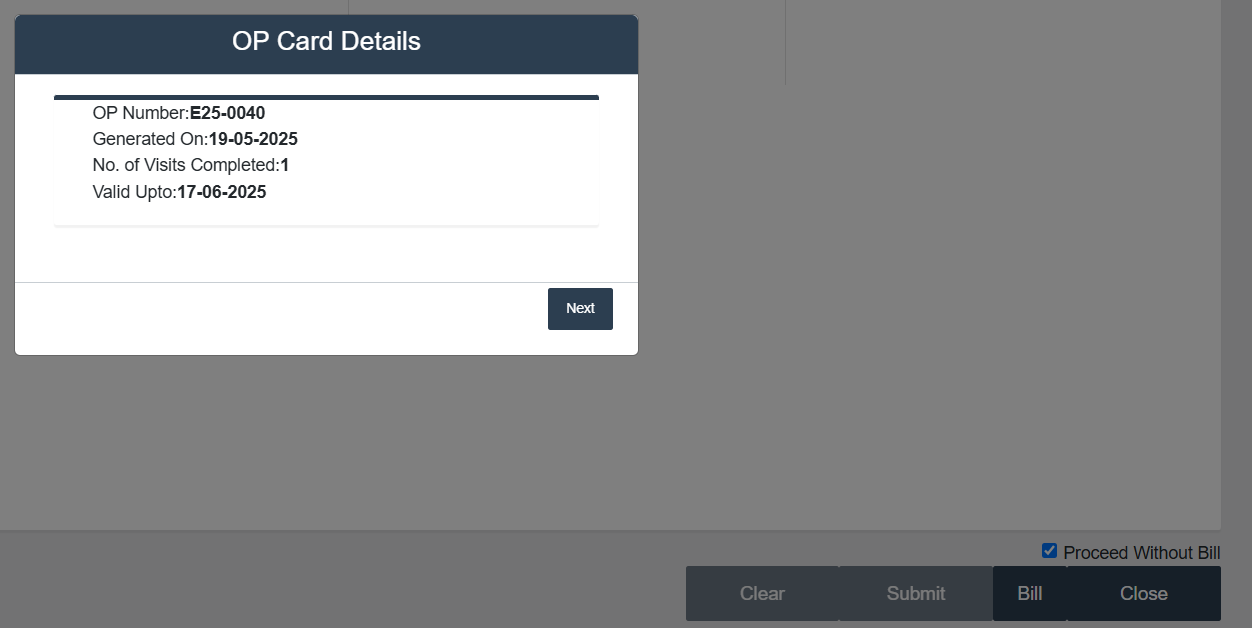
- OP Card will be generated with OP Number, Generated Date, No. of Visits Completed and Valid Upto.
Add to Queue (Existing Patient)
- Proceed with Bill
- Edit Patient details (if needed)
- Click Bill button to Generate Bill.
- Click Select Consulting Dr and select the Name of Doctor patient wants to consult from the drop-down list.
- Click Add to Queue to add the patient to the Waiting Queue.
- OP Card will be generated with OP Number, Generated Date, No. of Visits Completed and Valid Upto.

- Proceed without Bill
- Edit Patient details (if needed)
- Tick the check box for ‘Proceed to Queue'.
- Click Select Consulting Dr and select the Name of Doctor patient wants to consult from the drop-down list.
- Click Add to Queue to add the patient to the Waiting Queue.
- OP Card will be generated with OP Number, Generated Date, No. of Visits Completed and Valid Upto.

Note:
- When adding a New Patient to Queue, it is mandatory to sumbit data to generate Bill, else proceed directly by clicking the 'Proceed without Bill' check box.
- When adding an Existing Patient to Queue, Bill can be directly generated without submitting the patient details.