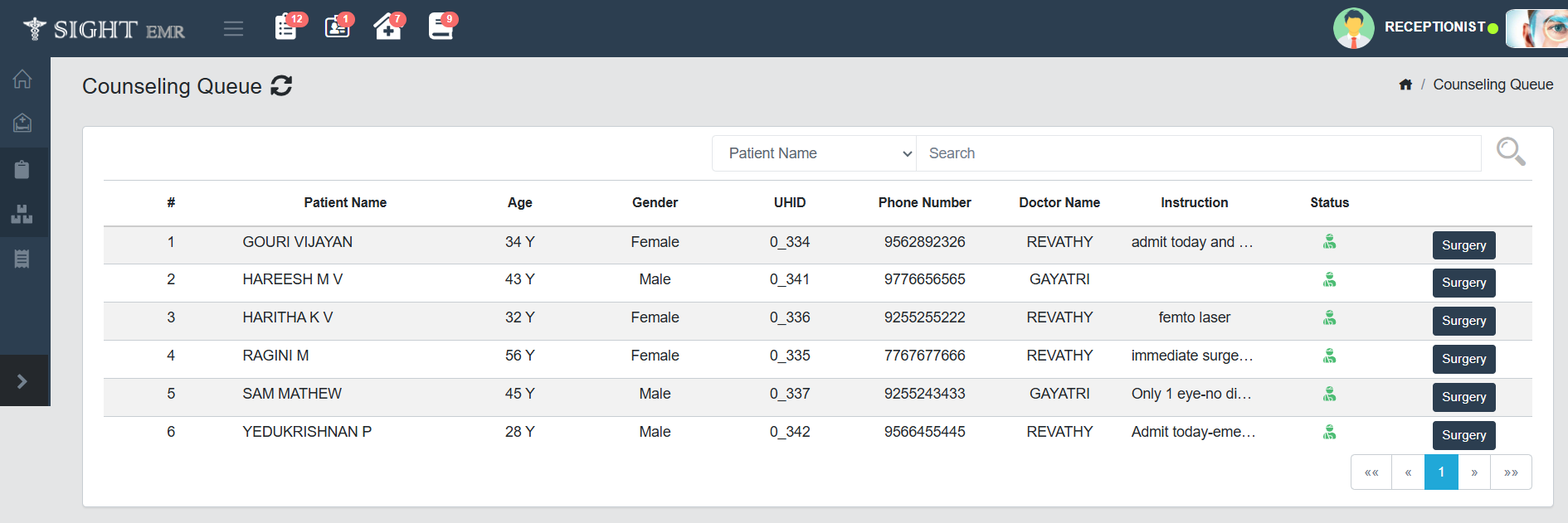
The Counseling Queue screen lists all patients who are currently waiting for counseling, who were Intimated by Doctor particularly for surgery-related discussions.
Each row displays key patient information such as the Patient's name, Age, Gender, UHID , Phone Number, Assigned Doctor, Instructions given by Doctor and status (Outpatient/ Inpatient) of the Patient.
Actions:
Search Functionality: Allows filtering the queue by Patient name/ UHID/ Phone Number.
Refresh Icon: Updates the list with the latest entries.
Navigation Arrows: Use to browse multiple pages if the list is long.
The Surgery button at the end of the row allows the counselor to proceed with surgery booking for that specific patient.
Click Surgery Button.
A pop-up screen appears (Surgery Booking).
The Surgery Booking screen allows counselors or authorized staff to schedule surgeries for patients by selecting a suitable Date, Doctor, Operation theater (OT), and Room/Bed.
At the top of the screen, the Patient’s details are displayed including Name, Age, Gender, UHID, Contact Number, Referral details, and Insurance information.
Calendar View:
A monthly calendar is shown to select the desired date for surgery.
Scheduled Surgeries are indicated using colored indicators (e.g., small numbers inside circles).
Navigation arrows allow moving between months.
Availability Section:
Available Doctors: A list of surgeons/doctors available for the selected date. The user can choose one by clicking on the respective doctor’s name.
Available OT Rooms: Displays operation theaters (like OT 1, OT 2, etc.) that can be selected for the surgery (Created by the Clinic Admin/Super Admin).
Available Rooms/Beds: Lists the room or bed options (e.g., Deluxe, Room 101, Single Bed) for patient admission post-surgery (Created by the Clinic Admin/Super Admin).
After filling in all the required details, click Proceed button to move to Surgery Booking screen.
This screen is used to finalize the surgery booking by entering clinical, procedural, and billing details.
Patient Details (Top Section):
Automatically fetched from the EMR: Name, Age, Gender, Referral, UHID, Contact info.
Helps in reconfirming the patient identity before final booking.
Clinical Fields:
Doctor*: Select the operating doctor.
Eye*: Choose between Right or Left eye.
Admit Date & Discharge Date*: Specify the duration of admission.
Systemic / Power: Optional fields for any systemic notes and power lens values.
Reporting Time: Expected patient reporting time for surgery.
Lens: Optional field to enter lens details.
OT Room: Choose the operation theatre room.
Room/Bed: Select the room or bed for post-operative care.
Insurance: Toggle ON if the patient has insurance coverage.
INsurance Provider*: Seaarch Insurance provider name and select the one.
Insurance Number*: Enter Insurance Number.
Insurance Expiry*: Select the Expiry Date of the Insurance from date picker. If the date selected is before the date of surgery, a toaster will appears as 'Insurance date will be expired by the time of Surgery'.
Alternate Nmber: Alternate Contact Number of the Patient.
Patient name*: Enter the patient name to confirm. If not same, a toaster will appears as 'Oops! Patient Name is not matching'.
DOB*: Select the DOB from date picker.
Gender*: Select Gender (Male/Female) from the drop-down list.
All the enered Insurance details will be appeared in the upcoming screens and are non-editable.
Procedure Selection:
The Procedures added by the Dr at the time of Consultation will be listed here.
Use the Search bar to find and add surgical procedures.
Use Trash icon at the left side of each procedure row to delete the particular item.
Use + button at the right of each procedure row to add extra items.
For each procedure:
Price is auto-filled.
You can apply a Discount (Flat/Percentage).
CGST/ SGST fields are not editable.
Total is calculated automatically per procedure.
Billing Summary (Right Section):
Gross Amount: Total of all procedures before discount/tax.
Discount Amount: Total of discounts applied.
SGST/CGST Amount: If applicable.
Net Amount: Amount after applying discounts and taxes.
Grand Total: Final amount to be paid by the patient.
Additional Information':
Pending Amount: Auto-filled based on net amount.
Reason for Admit*: Mandatory input explaining why admission is needed.
Comment: Can add comments by Counselor if any.
Camp Patient: Tick if this case is part of a camp initiative.
Notes: Add additional notes if any.
Action Buttons:
Schedule: Click Schedule button to add the Patient to Surgery Queue.
Patient having Insurance will be shown in Insurance Status under Surgery Queue.
Patient without Insurance will be shown in Schedule List under Surgery Queue.
Advance: Click Advance button to collect advance payment if any.