On this page
Go to Bill List (Side Nav).
Select Clinic Bill List .
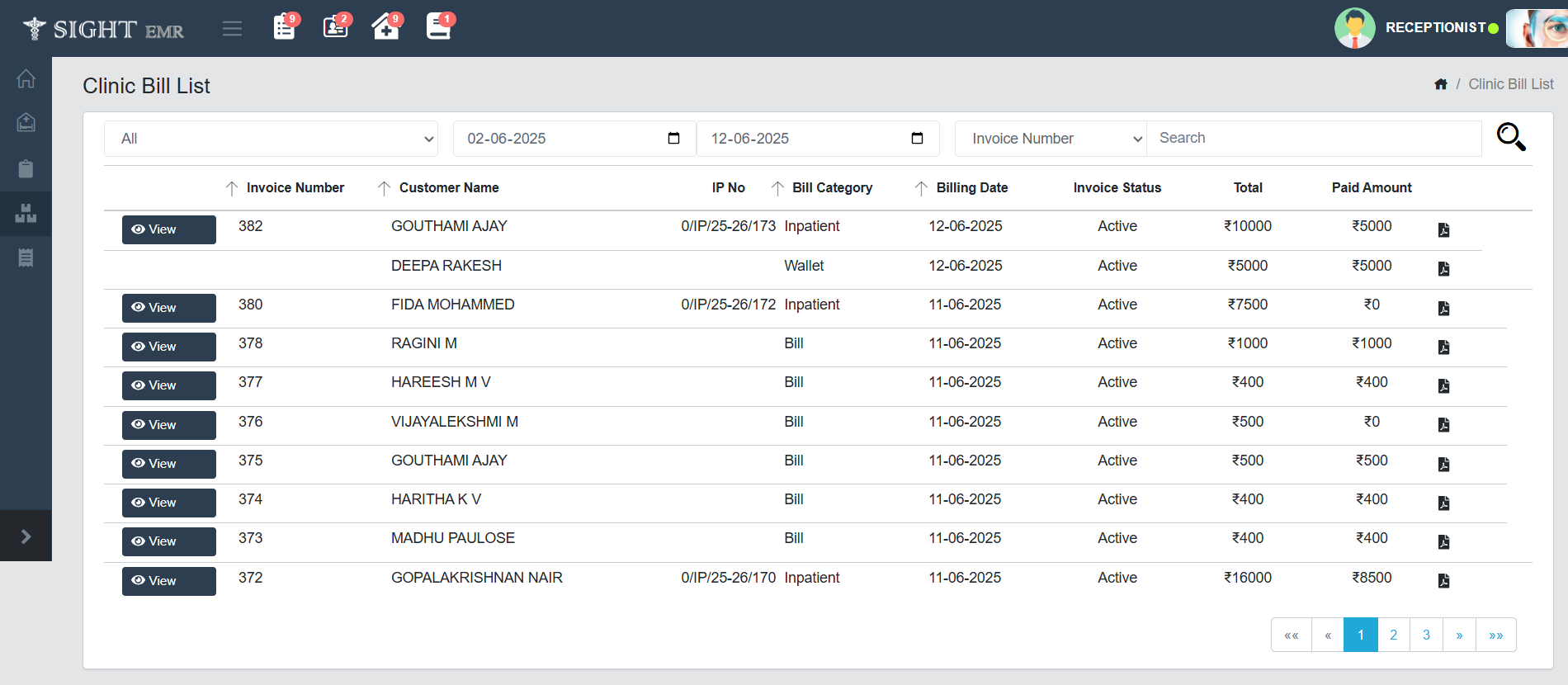
The Clinic Bill List screen displays all billing records generated within a selected date range. It allows users to view, search, and download individual bills efficiently.
🔍 Filters and Search Options
At the top of the screen, users can filter the bill list using the following controls:
Bill Category Dropdown : Allows filtering bills by category (Bill/Inpatient/Insurance/Surgery-Refund/Wallet).Date Range: Select the From Date and To Date using date picker.
Dropdown: Enables sorting or filtering by Invoice number/Customer Name/IP No.
Search Box: Allows keyword search.
Bill List Table Description
Each row in the displayed bill list includes the following details:
View Button : A dark blue button with an eye icon. Clicking it opens the bill details for that record.Invoice Number : A unique numeric code assigned to each bill.Customer Name : The full name of the patient or customer.IP No : The inpatient registration number, if applicable.Bill Category : Indicates the billing type, such as Inpatient, Wallet, or General Bill.Billing Date : The date on which the bill was generated.Invoice Status : Displays the current status of the bill.Total : The total billed amount.Paid Amount : The amount already paid.Download Icon : A PDF icon at the end of each row allows quick bill download.
At the bottom-right of the screen, pagination controls help users navigate through multiple pages of billing records. Users can move to the first, previous, specific, next, or last page using arrow and number buttons.