💰Direct Billing
- Go to Billing (Side Nav) adn Select Billing.
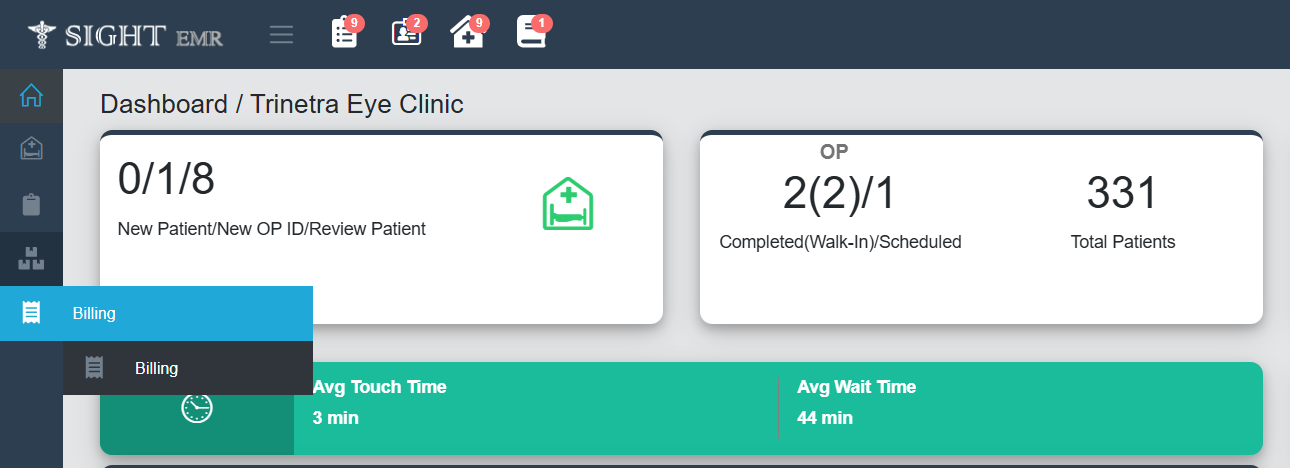
-
Billing screen
-
For Existing Patients
- Search Bar: Search Patient Name/ Phine Number/ UHID and select the patient from the list.
- A screen with Patient Details (Patient Name/Address/UHID/Age/Gender/Phone No.,/Patient status:Inpatient/Outpatient).
- For surgery scheduled patients: extra details such as Scheduled date/IP number/Scheduled Status(Pending/Confirmed).
- Billing Action Buttons
Below the patient details, the screen presents a series of clearly labeled buttons for billing operations:
- New Bill: Creates a fresh bill for the patient’s treatment or visit.
- Estimate Bill: Prepares an estimated bill providing a cost projection for the planned procedures.
- Insurance Claim Bill: Used to generate a bill format suitable for insurance claim processing.
- Surgery Final Bill: Generates the final consolidated bill after surgery has been completed.
- Contains auto-filled extra rows such as Insurance Amount, Insurance Co-pay amount,Advance Amount, Pending Amount, Co-Pay Payment Status, Total Surgery Amount.
- Back: Returns the user to the previous screen.
-
For Existing/New patients/External Customer
- Click New Bill button below the search Bar.
- Billing screen appears.
- Enter/Search Patient Name.
- For existing Patients: UHID, Phone Number and Address will be auto-filled.
- Clinic Details with Name and Phone Number.
- Payment Status: Paid/Not Paid/Free.
- Payment Method: Select Payment Method from drop-down list (Cash/Card/Online/Free/Split).
- Bill Type: Select Bill Type (Bill or Surgery).
- Doctor Name: Select the consulting doctor from the dropdown.
-
Billing Details
- Search for and add procedures, investigations, or consultation fees.
- Quantity: Cannot be edited.
- Type: Select the type from drop-down list (Consultation/Consumables/Investigaion/Others/Procedures).
- Price: Enter the price for the service.
- Discount Type: Choose the discount type (Flat/%).
- Discount Amount: Enter the discount value.
- CGST/SGST: Enter CGST and SGST percentages if applicable
- Total: The total will be auto-calculated based on price, discount, and taxes.
-
Bill Summary Section
- Gross Amount: Original amount before any discount.
- Discount Amount: Total discount applied.
- SGST / CGST Amount: Tax values applied.
- Net Amount: Amount after applying discount and taxes.
- Discount/Excess Amount: Adjustments if any.
- Grand Total: Final amount to be paid by the patient.
-
-
Notes
- This section allows users to enter any custom notes for the bill.
-
Action Buttons
- ➕ Button at the right of the row to add New Items to the list.
- 🗑 Button at the left of the row to delete the corresponding entry.
- Print Bill: Click Print Bill Button at the bottom right of the screen to Generate the Bill.
tip
Generated Bills are listed in the Bill List (Clinic Bill List).