Counseling Queue
- 🖥️Web
- 📱Mobile
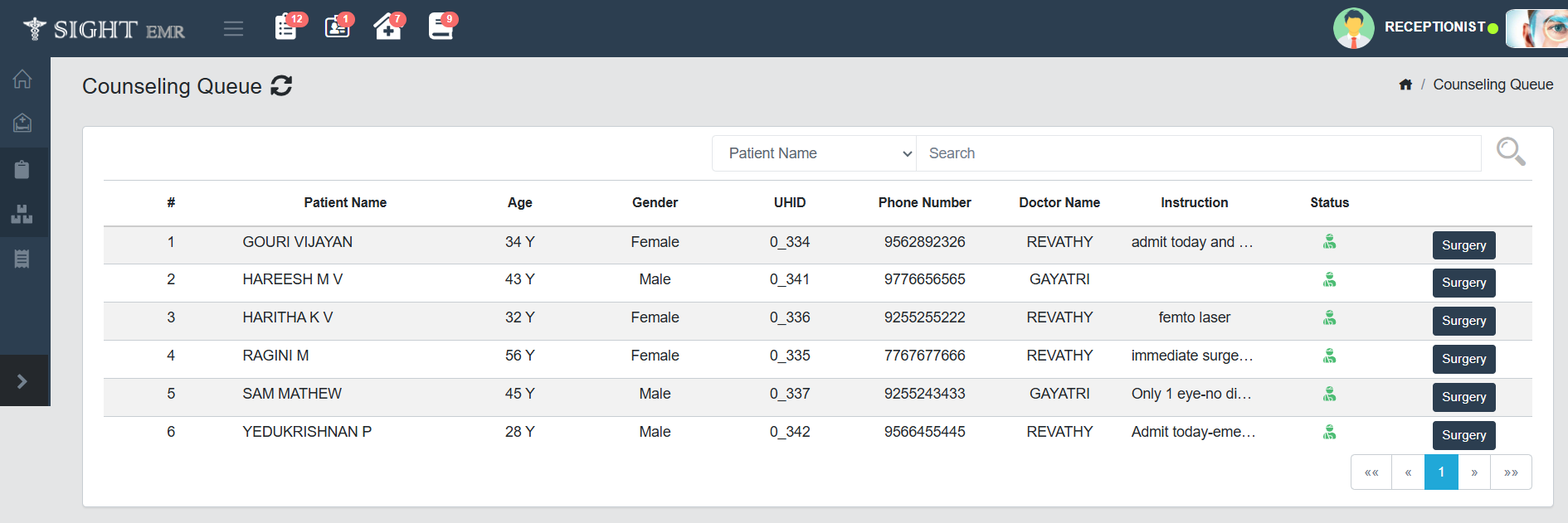
- The Counseling Queue screen lists all patients who are currently waiting for counseling, who were Intimated by Doctor particularly for surgery-related discussions.
- Each row displays key patient information such as the Patient's name, Age, Gender, UHID , Phone Number, Assigned Doctor, Instructions given by Doctor and status (Outpatient/ Inpatient) of the Patient.
- Actions:
- Search Functionality: Allows filtering the queue by Patient name/ UHID/ Phone Number.
- Refresh Icon: Updates the list with the latest entries.
- Navigation Arrows: Use to browse multiple pages if the list is long.
- The Surgery button at the end of the row allows the counselor to proceed with surgery booking for that specific patient.
- Click Surgery Button.
- A pop-up screen appears (Surgery Booking).
- The Surgery Booking screen allows counselors or authorized staff to schedule surgeries for patients by selecting a suitable Date, Doctor, Operation theater (OT), and Room/Bed.
- At the top of the screen, the Patient’s details are displayed including Name, Age, Gender, UHID, Contact Number, Referral details, and Insurance information.
- Calendar View:
- A monthly calendar is shown to select the desired date for surgery.
- Scheduled Surgeries are indicated using colored indicators (e.g., small numbers inside circles).
- Navigation arrows allow moving between months.
- Availability Section:
- Available Doctors: A list of surgeons/doctors available for the selected date. The user can choose one by clicking on the respective doctor’s name.
- Available OT Rooms: Displays operation theaters (like OT 1, OT 2, etc.) that can be selected for the surgery (Created by the Clinic Admin/Super Admin).
- Available Rooms/Beds: Lists the room or bed options (e.g., Deluxe, Room 101, Single Bed) for patient admission post-surgery (Created by the Clinic Admin/Super Admin).
- After filling in all the required details, click Proceed button to move to Surgery Booking screen.
Surgery Booking
- This screen is used to finalize the surgery booking by entering clinical, procedural, and billing details.
- Patient Details (Top Section):
- Automatically fetched from the EMR: Name, Age, Gender, Referral, UHID, Contact info.
- Helps in reconfirming the patient identity before final booking.
- Clinical Fields:
- Doctor*: Select the operating doctor.
- Eye*: Choose between Right or Left eye.
- Admit Date & Discharge Date*: Specify the duration of admission.
- Systemic / Power: Optional fields for any systemic notes and power lens values.
- Reporting Time: Expected patient reporting time for surgery.
- Lens: Optional field to enter lens details.
- OT Room: Choose the operation theatre room.
- Room/Bed: Select the room or bed for post-operative care.
- Insurance: Toggle ON if the patient has insurance coverage.
- INsurance Provider*: Seaarch Insurance provider name and select the one.
- Insurance Number*: Enter Insurance Number.
- Insurance Expiry*: Select the Expiry Date of the Insurance from date picker. If the date selected is before the date of surgery, a toaster will appears as 'Insurance date will be expired by the time of Surgery'.
- Alternate Nmber: Alternate Contact Number of the Patient.
- Patient name*: Enter the patient name to confirm. If not same, a toaster will appears as 'Oops! Patient Name is not matching'.
- DOB*: Select the DOB from date picker.
- Gender*: Select Gender (Male/Female) from the drop-down list.
- All the enered Insurance details will be appeared in the upcoming screens and are non-editable.
- Procedure Selection:
- The Procedures added by the Dr at the time of Consultation will be listed here.
- Use the Search bar to find and add surgical procedures.
- Use Trash icon at the left side of each procedure row to delete the particular item.
- Use + button at the right of each procedure row to add extra items.
- For each procedure:
- Price is auto-filled.
- You can apply a Discount (Flat/Percentage).
- CGST/ SGST fields are not editable.
- Total is calculated automatically per procedure.
- Billing Summary (Right Section):
- Gross Amount: Total of all procedures before discount/tax.
- Discount Amount: Total of discounts applied.
- SGST/CGST Amount: If applicable.
- Net Amount: Amount after applying discounts and taxes.
- Grand Total: Final amount to be paid by the patient.
- Additional Information':
- Pending Amount: Auto-filled based on net amount.
- Reason for Admit*: Mandatory input explaining why admission is needed.
- Comment: Can add comments by Counselor if any.
- Camp Patient: Tick if this case is part of a camp initiative.
- Notes: Add additional notes if any.
- Action Buttons:
- Schedule: Click Schedule button to add the Patient to Surgery Queue.
- Patient having Insurance will be shown in Insurance Status under Surgery Queue.
- Patient without Insurance will be shown in Schedule List under Surgery Queue.
- Advance: Click Advance button to collect advance payment if any.
- Schedule: Click Schedule button to add the Patient to Surgery Queue.
-
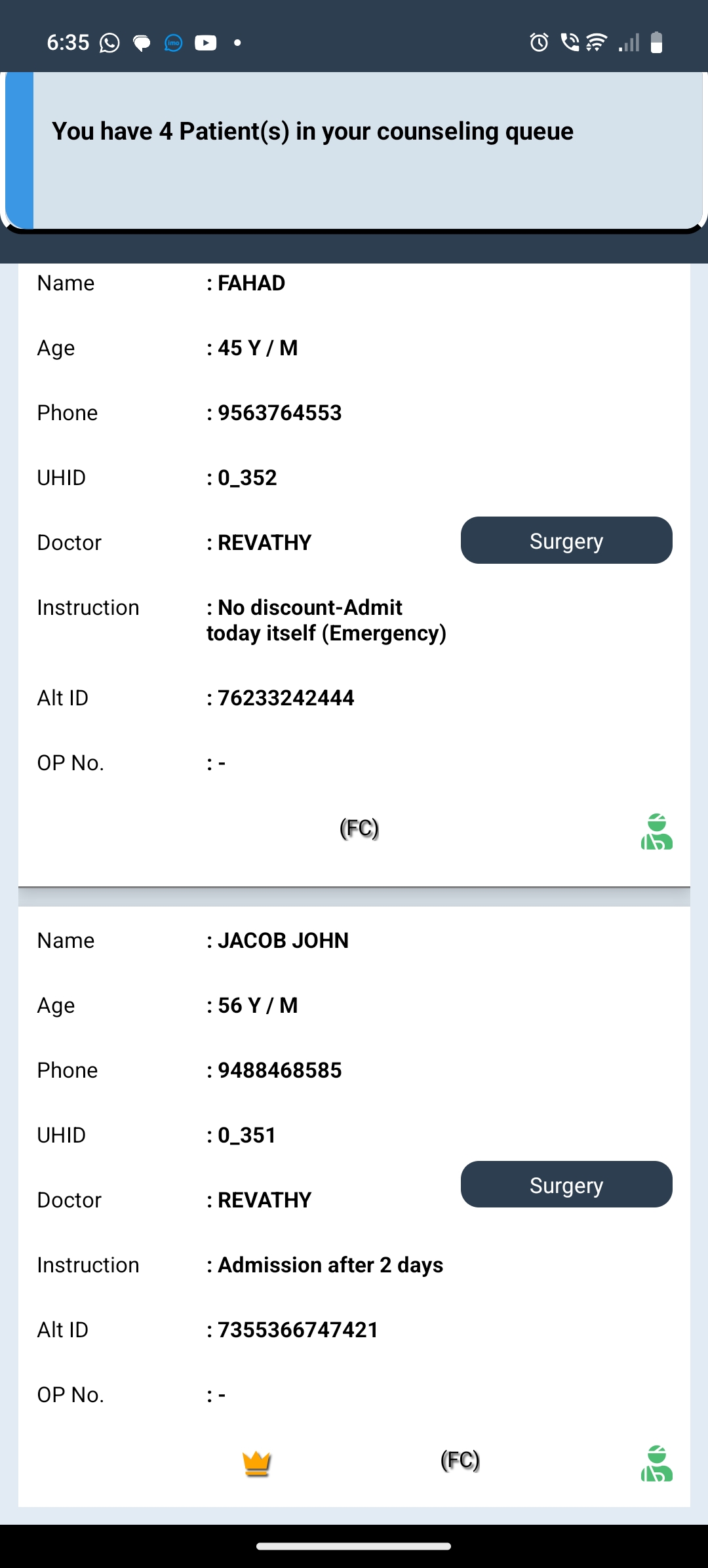
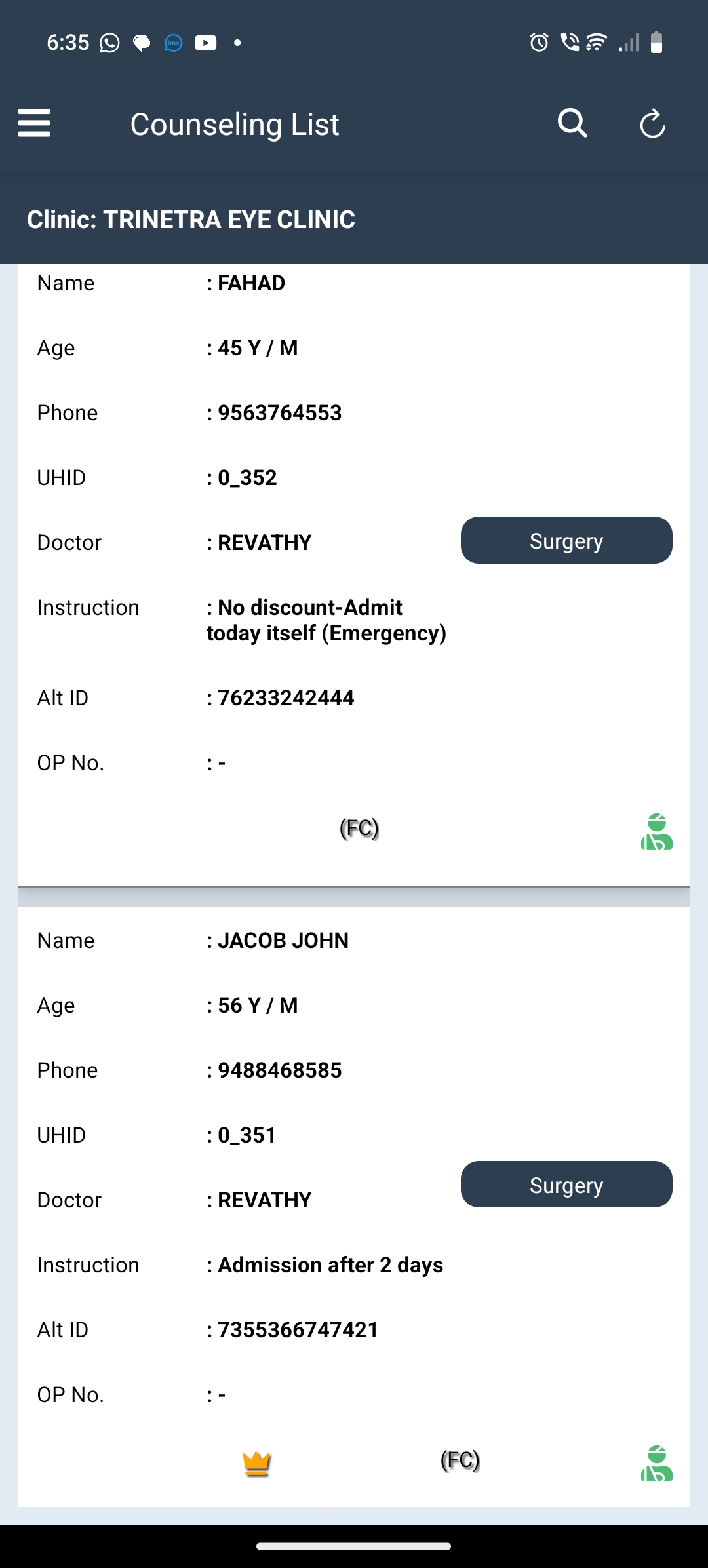
The Counseling Queue screen lists all patients who are currently waiting for counseling, who were Intimated by Doctor from Web, particularly for surgery-related discussions.
-
A notification will be appeared as You have 4 Patient(s) in your Counseling queue at the top of the screen whhen the Doctor Intimate the person from Web.
-
Each row displays key patient information such as the Patient's name, Age, Gender, UHID , Phone Number, Assigned Doctor, Instructions given by Doctor and status (Outpatient/ Inpatient) of the Patient.
-
Actions:
- Search Functionality: Allows filtering the queue by Patient name/ UHID/ Phone Number.
- Refresh Icon: Updates the list with the latest entries.
- The Surgery button at the right of the row allows the counselor to proceed with surgery booking for that specific patient.
Surgery Booking
- Click Surgery Button.
- A screen appears for booking Surgery.
- The Surgery Booking screen allows counselors or authorized staff to schedule surgeries for patients by selecting a suitable Date, Doctor, Operation theater (OT), and Room/Bed.

- Patient Details (Top Section):
- Automatically fetched from the EMR: Alt ID, UHID, Age, Name, Phone, Email and Address.
- Helps in reconfirming the patient identity before final booking.
- Provision to call the patient by clicking the green phone icon given at the right side of the phone number.
- Procedures: Click Procedures to view the procedures added by the Doctor.
- Clinical Fields:
- Doctor*: Select the operating doctor.
- Reporting Time: Expected patient reporting time for surgery.
- Systemic: Optional fields for any systemic notes and power lens values.
- Room/Bed: Select the room or bed for post-operative care.
- OT Room: Choose the operation theatre room.
- Discharge Date*: Select discharge date from the date picker.
- Eye*: Choose between Right or Left eye.
- Power: Optional field to enter Power details.
- Lens: Optional field to enter lens details.
- Reason for Admit*: Mandatory input explaining why admission is needed.
- Check Boxes:
- VIP/Camp Patient/Foreign Citizen: Tick the check boxes if needed.
- Insurance: Tick the check box, if the patient has insurance coverage.
- INsurance Provider*: Seaarch Insurance provider name and select the one.
- Insurance Number*: Enter Insurance Number.
- Insurance Expiry*: Select the Expiry Date of the Insurance from date picker. If the date selected is before the date of surgery, a toaster will appears as 'Insurance date will be expired by the time of Surgery'.
- Alternate Nmber: Alternate Contact Number of the Patient.
- Patient name*: Enter the patient name to confirm. If not same, a toaster will appears as 'Oops! Patient Name is not matching'.
- DOB*: Select the DOB from date picker.
- Gender*: Select Gender (Male/Female) from the drop-down list.
- All the enered Insurance details will be appeared in the upcoming screens and are non-editable.
- Comments: Add comments if any.
- Action Buttons:
- Submit: Click Submit button for booking the surgery.
- Cancel: Click Cancel button to go back to the previous page.